How to Use TimeWise
Follow the steps below and start taking back control of your time
← Back to home
Follow the steps below and start taking back control of your time
← Back to homeThe first time you open TimeWise, a setup assistant will guide you through the process. It takes less than 2 minutes.
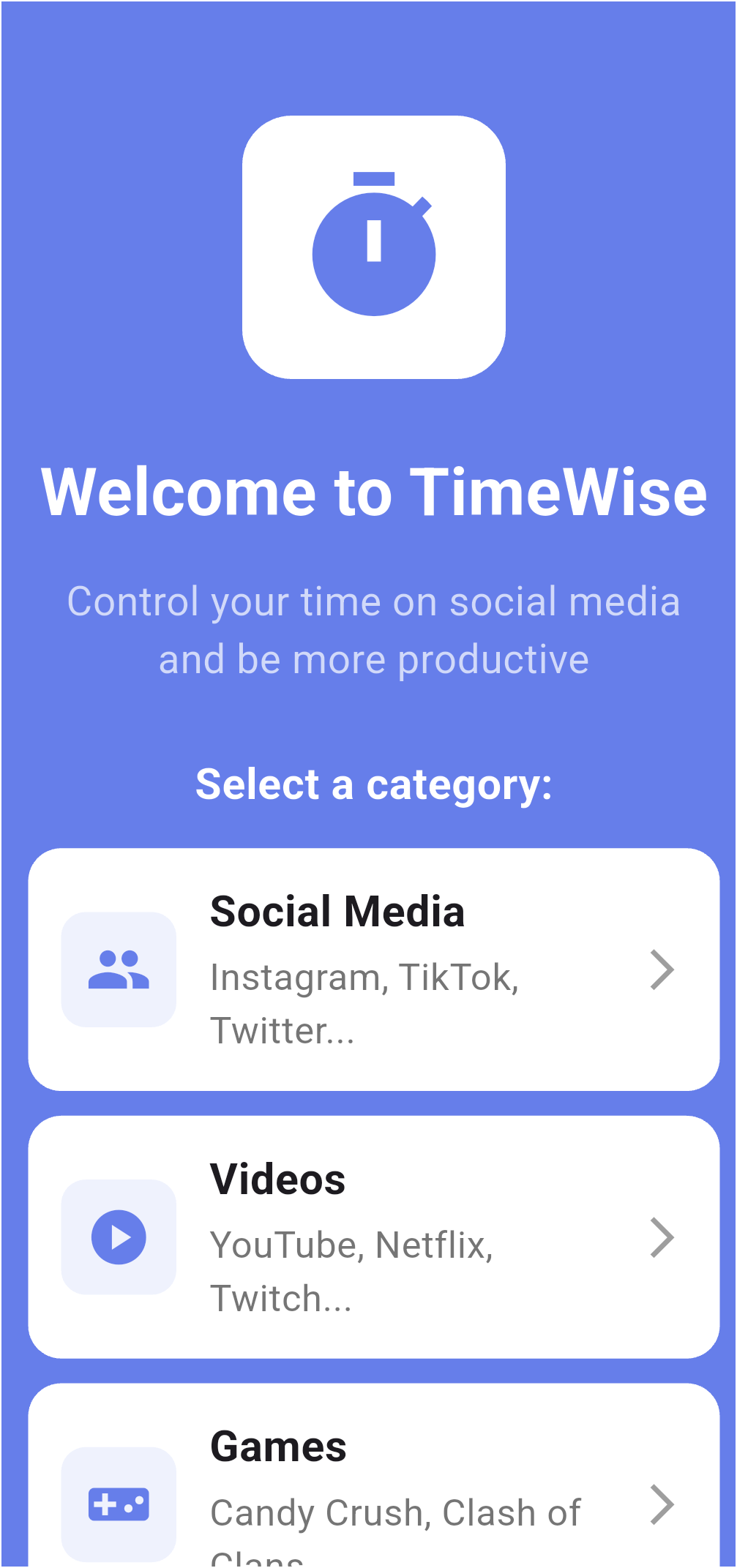
On the welcome screen, choose the category of the app you want to monitor: Social Media, Videos, Games, Messages — or select manually.
This step filters the apps installed on your phone to make the choice easier.
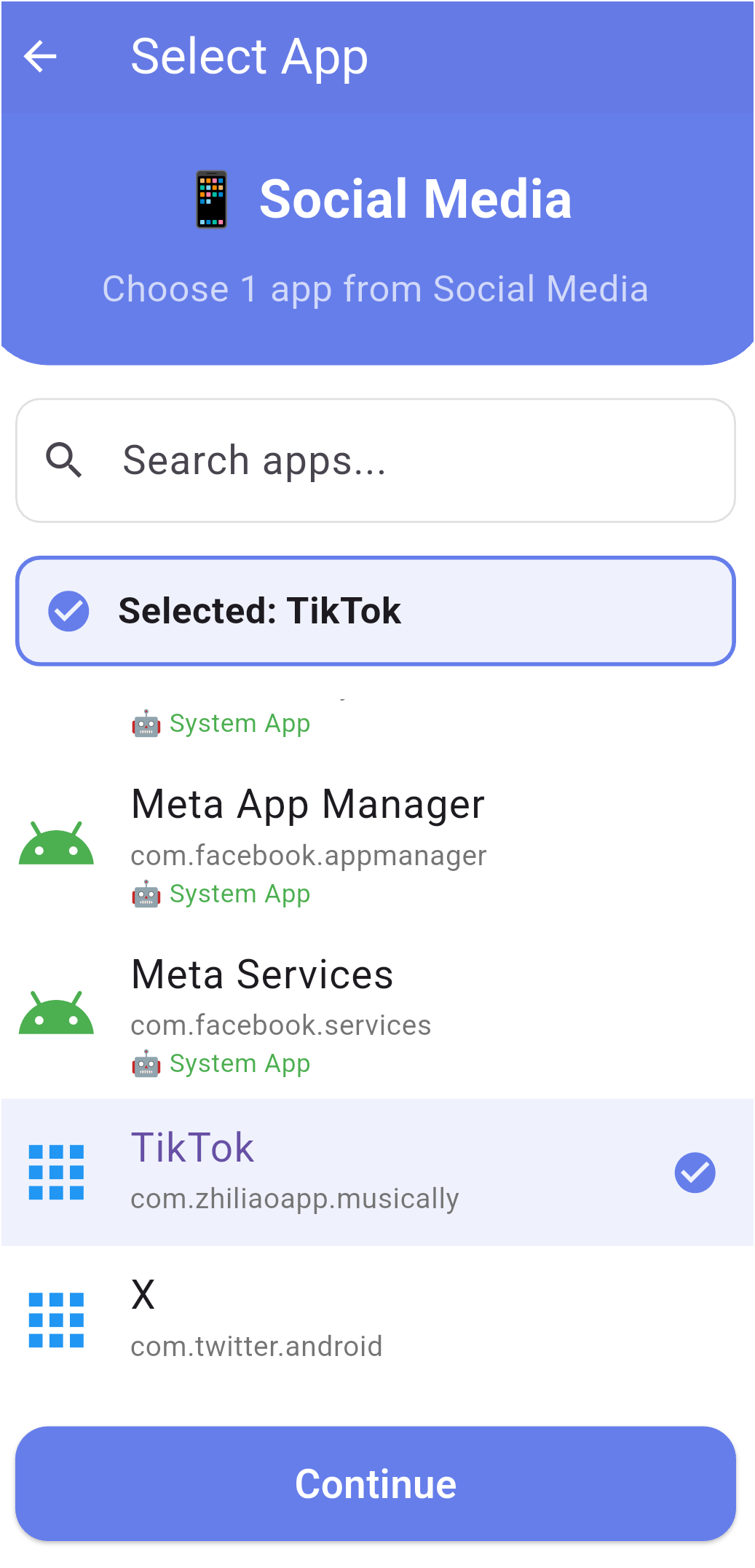
Select one app from the list that you want to control — for example, TikTok, Instagram, or YouTube.
Use the search bar to quickly find the app you want.
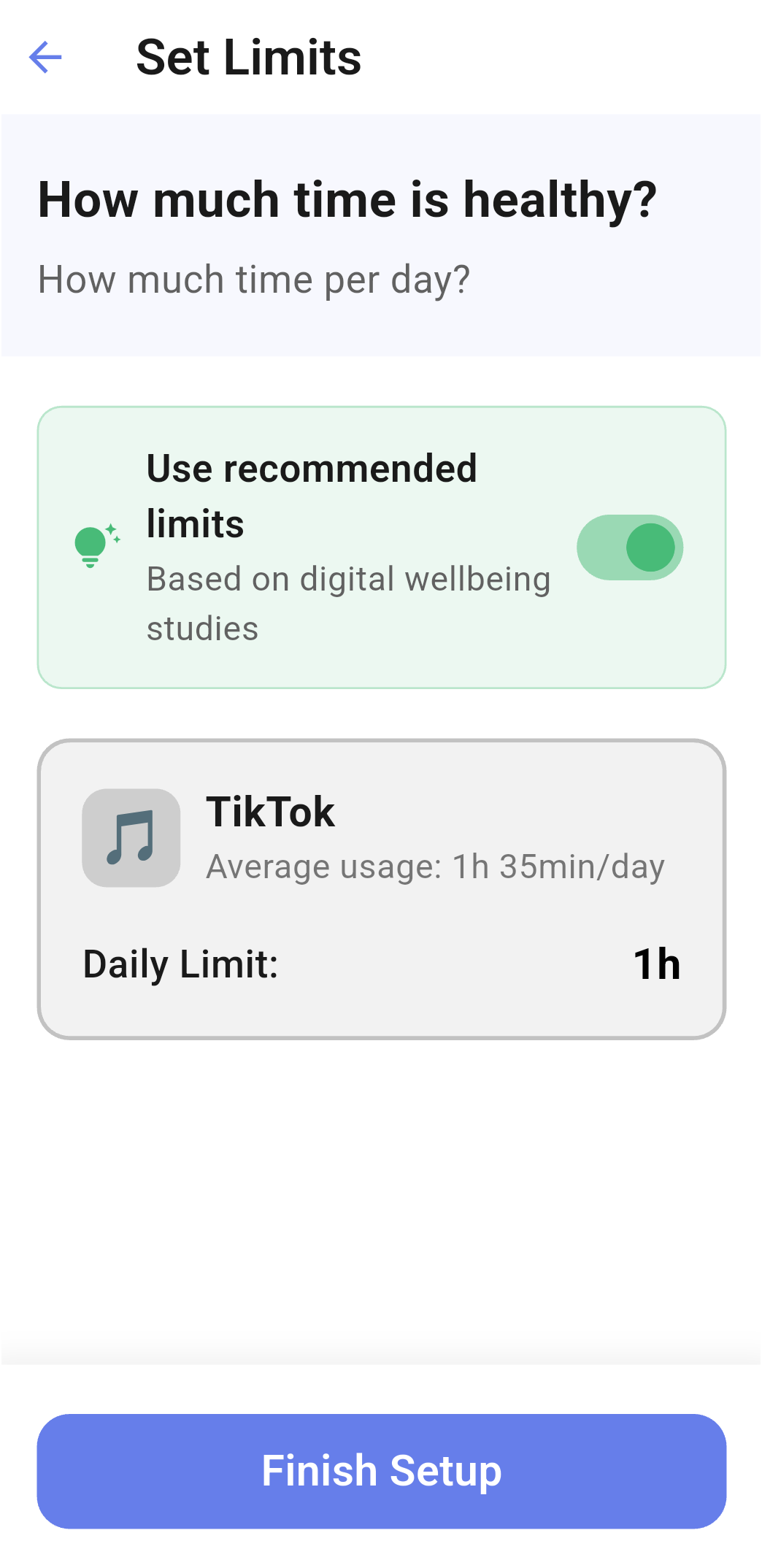
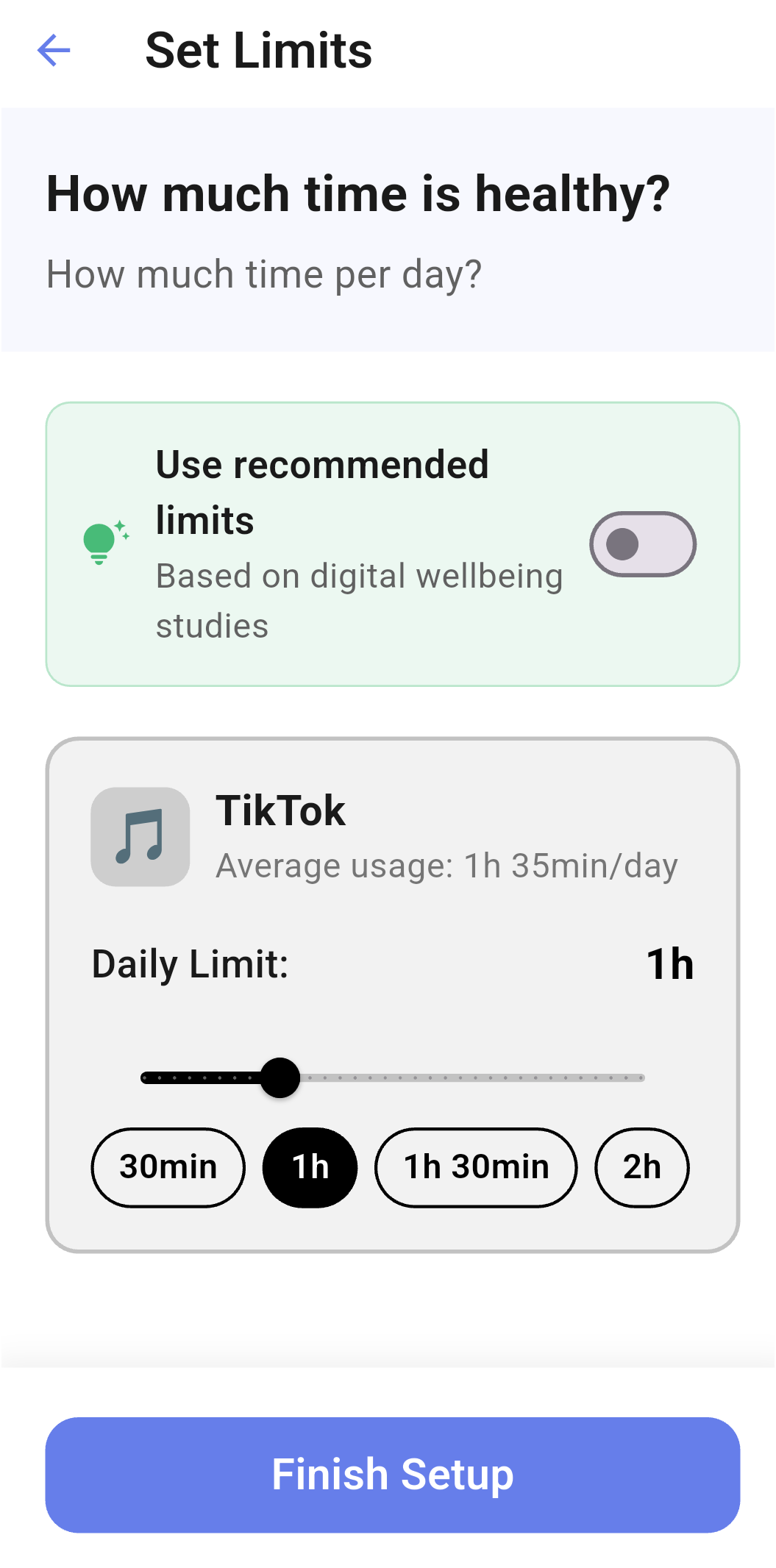
Choose how much time per day you want to spend on the selected app.
With "Use recommended limits" enabled (left image), TimeWise suggests a time based on digital wellbeing studies — a great reference to start with.
Prefer to customise? Turn the option off (right image) and drag the slider to the time that makes the most sense for you. There's no need to be extreme — balance is the goal.
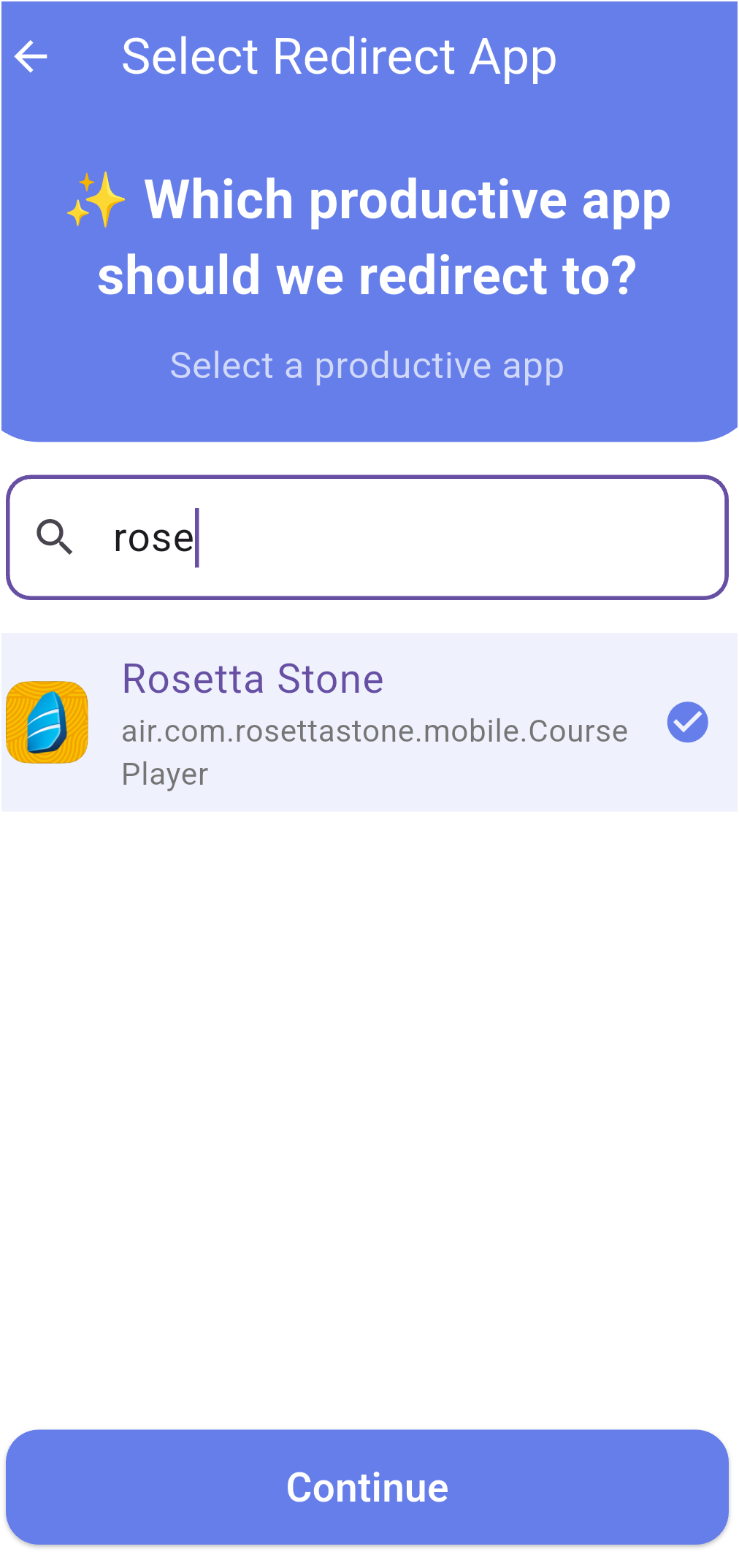
Select which app TimeWise will redirect you to when the limit is reached — for example, Duolingo, Kindle, or any learning app you enjoy.
This is the heart of TimeWise: instead of blocking you, it gently invites you to do something more productive.
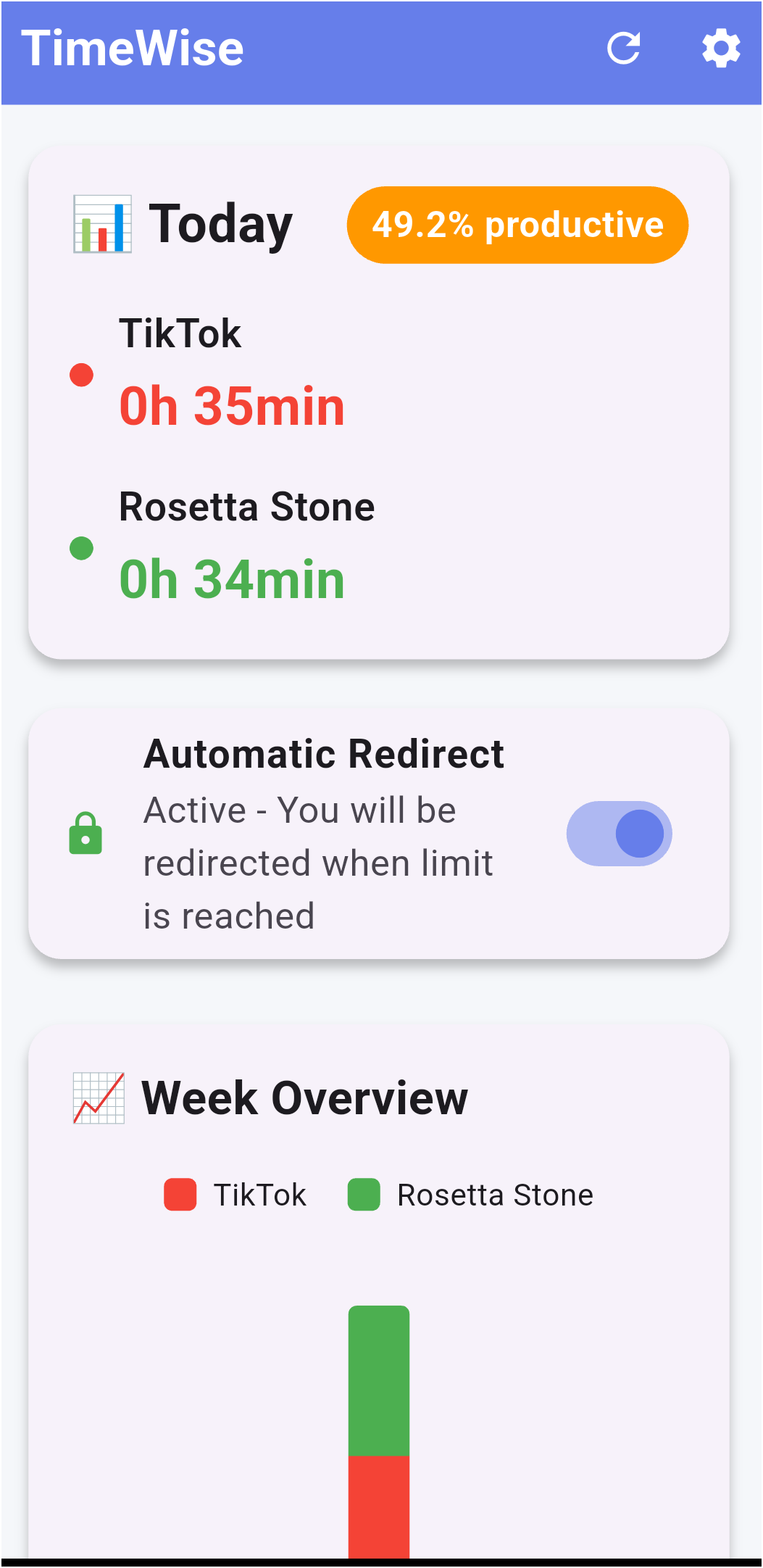
After setup, you land directly on the Dashboard — the main screen of the app. Here you'll see:
📊 Today's time on the monitored app and the productive app, along with your productivity percentage.
📈 Last 7 days history as a bar chart so you can track your progress over time.
🔄 Redirect toggle — pause the redirect whenever you like, without losing the time count.
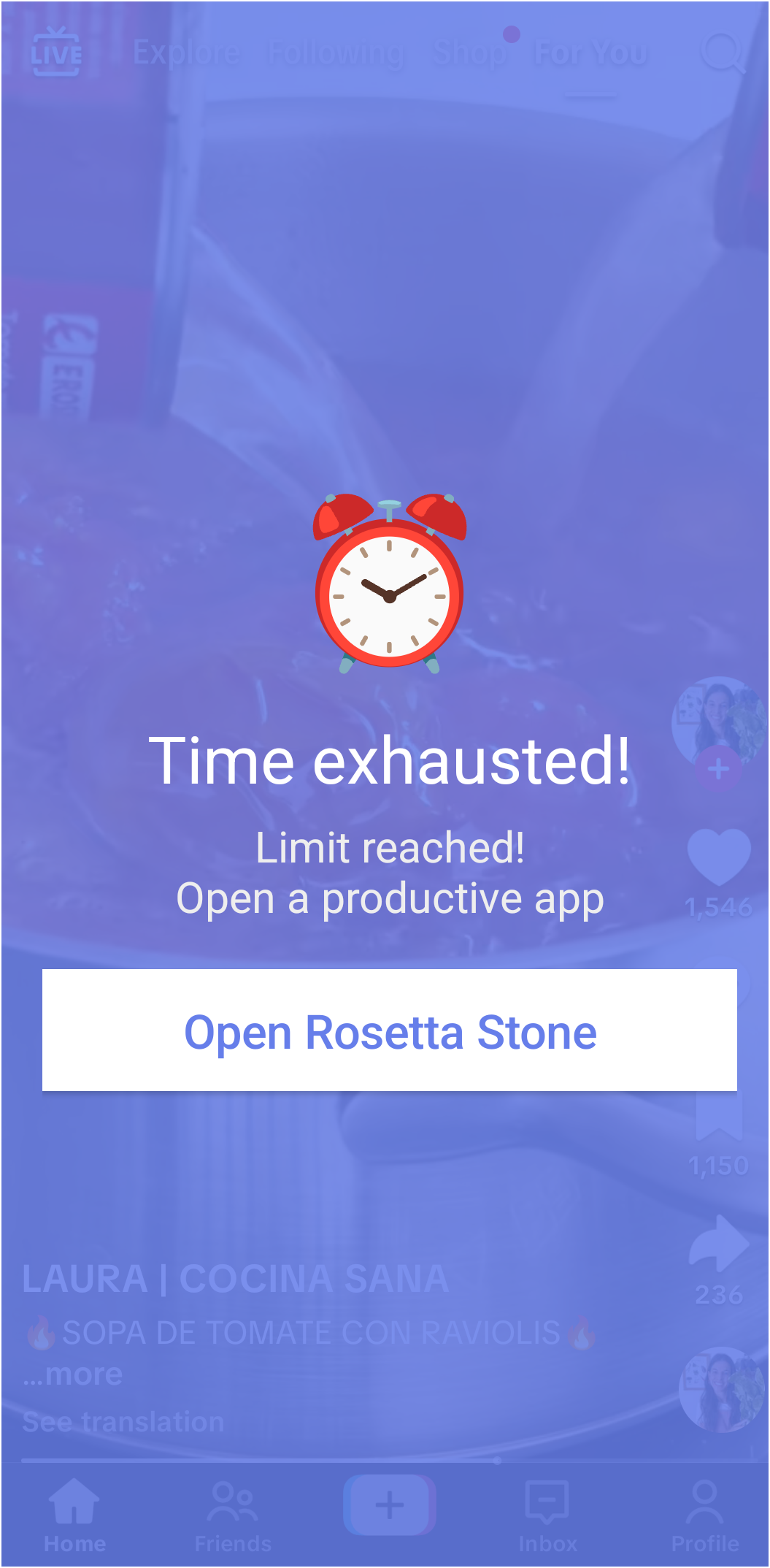
When you reach your set time while using the monitored app, TimeWise displays a warning screen with the message "Time exhausted!".
A button takes you directly to the productive app you chose. No forced blocking — you decide whether to open it or not.
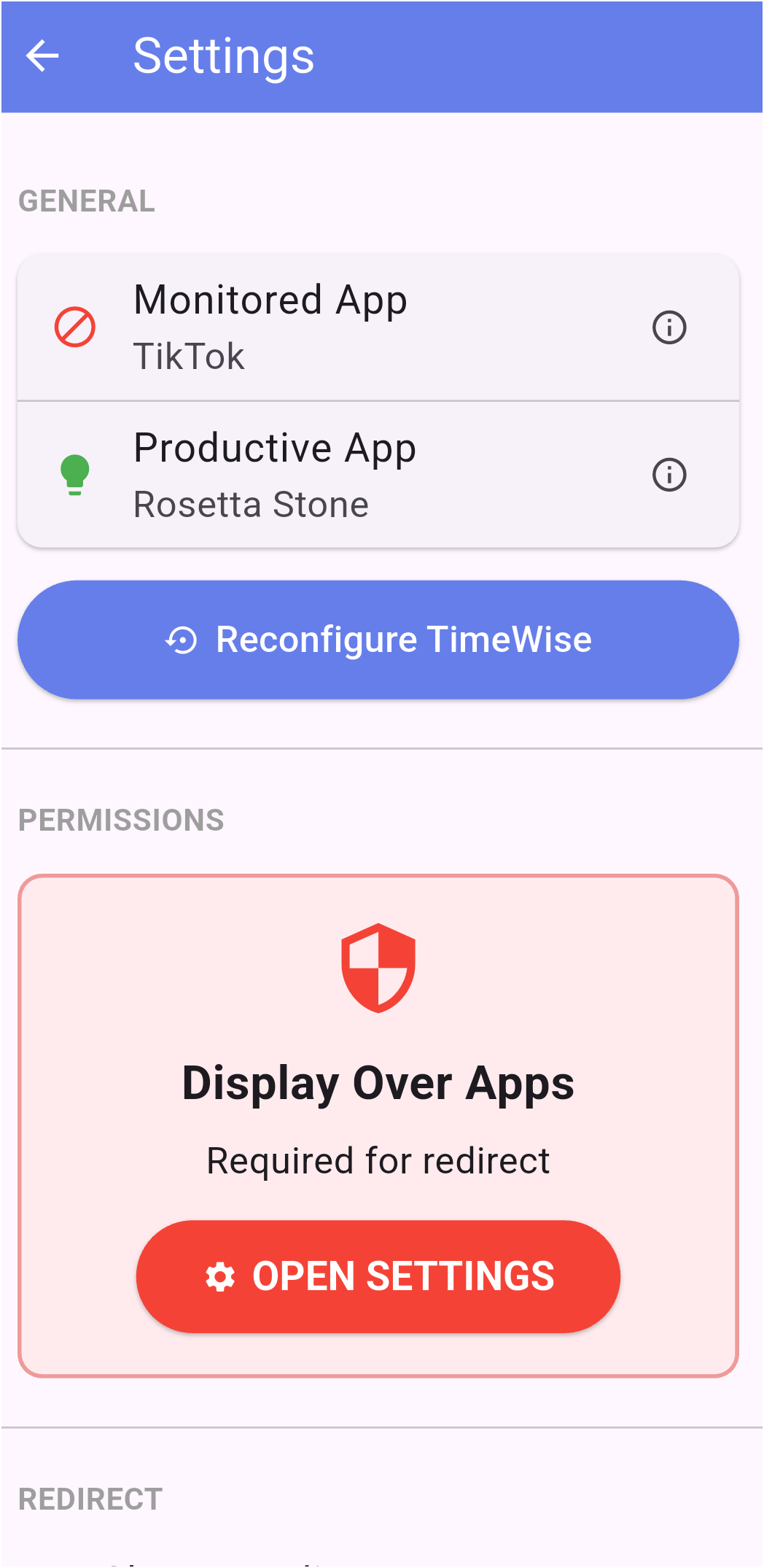
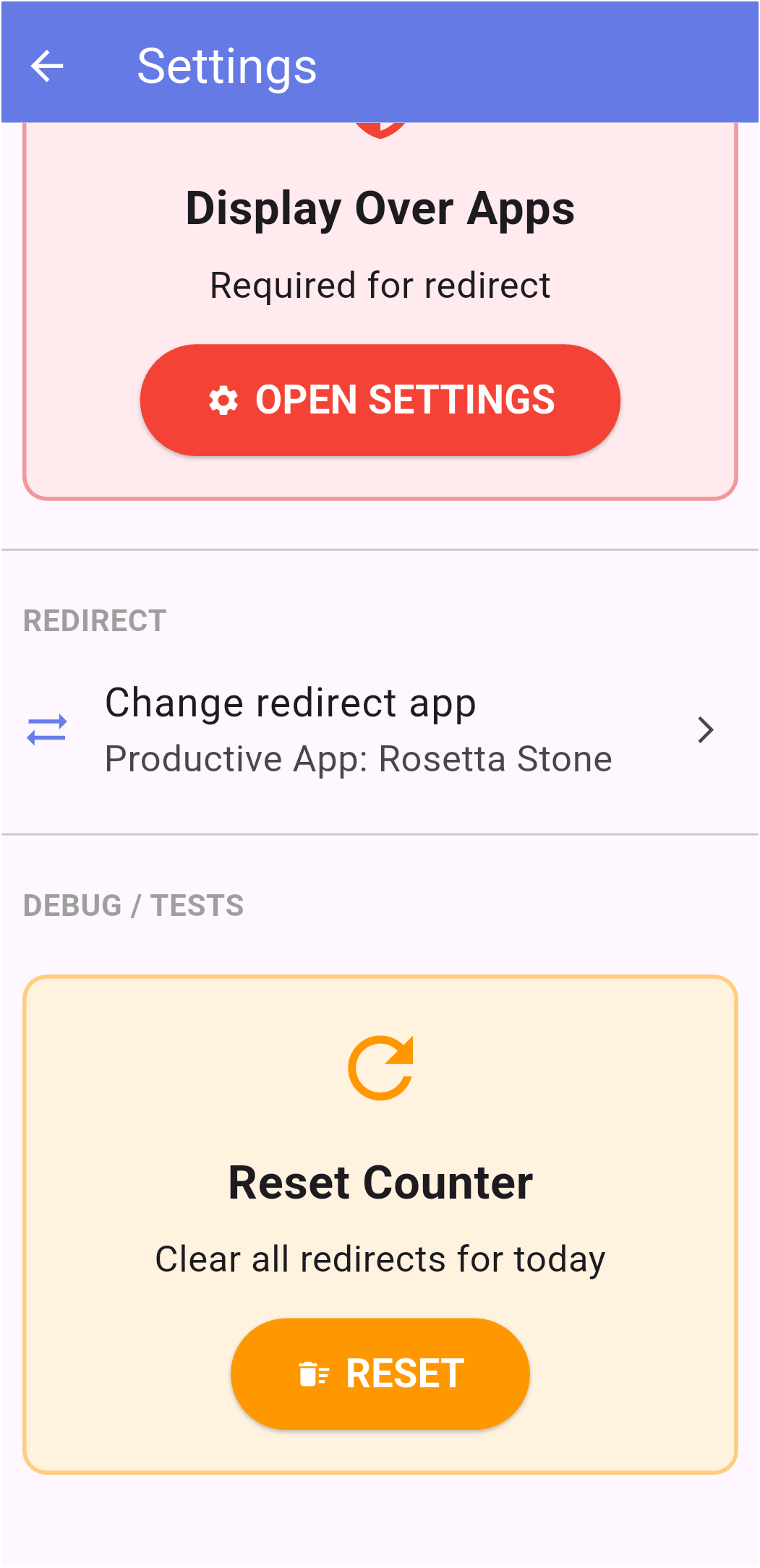
Access the settings via the gear icon on the Dashboard. The screen is split into two parts:
Upper section (left image): Shows the monitored app and the productive app currently configured, along with the required permissions — "Usage Access" (to monitor time) and "Display Over Other Apps" (to show the limit warning).
Lower section (right image): Lets you change the redirect app without redoing the onboarding, and also has a button to reset the counter for the day — useful for testing or fresh starts.